Editing Policy Configuration
Editing the Policy Config JSON allows you to adapt policy configurations to evolving access requirements. Here's a step-by-step guide on how to edit the Policy Config JSON:
-
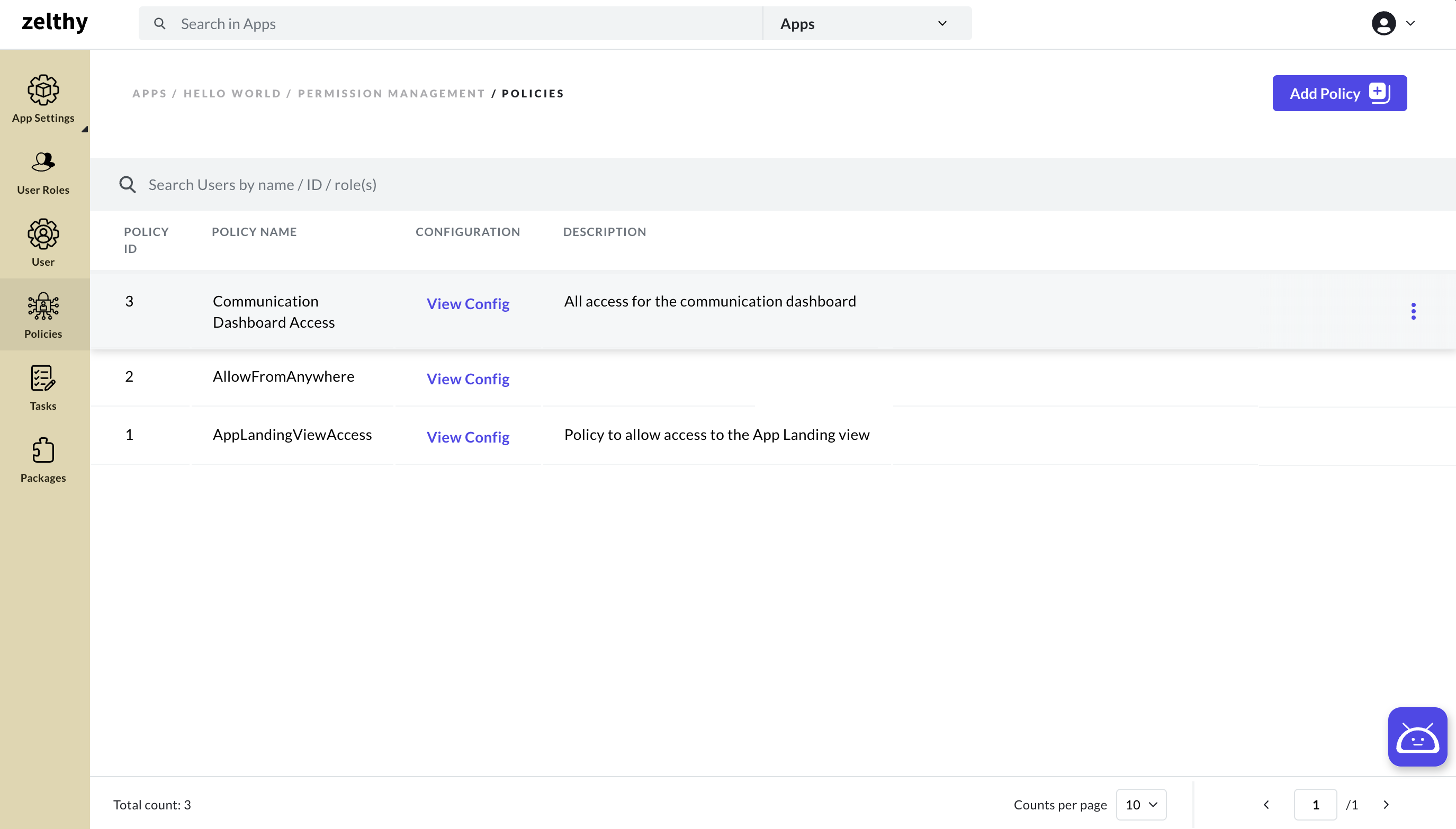
Navigate to Policy Page: Begin by accessing the "Policies" menu in App Panel. This will direct you to the Policy page, which displays a table view of all existing policies within your application.
-
Find and Access Desired Policy: Locate the policy you wish to modify within the policy table. Click on the policy to navigate to its details.
-
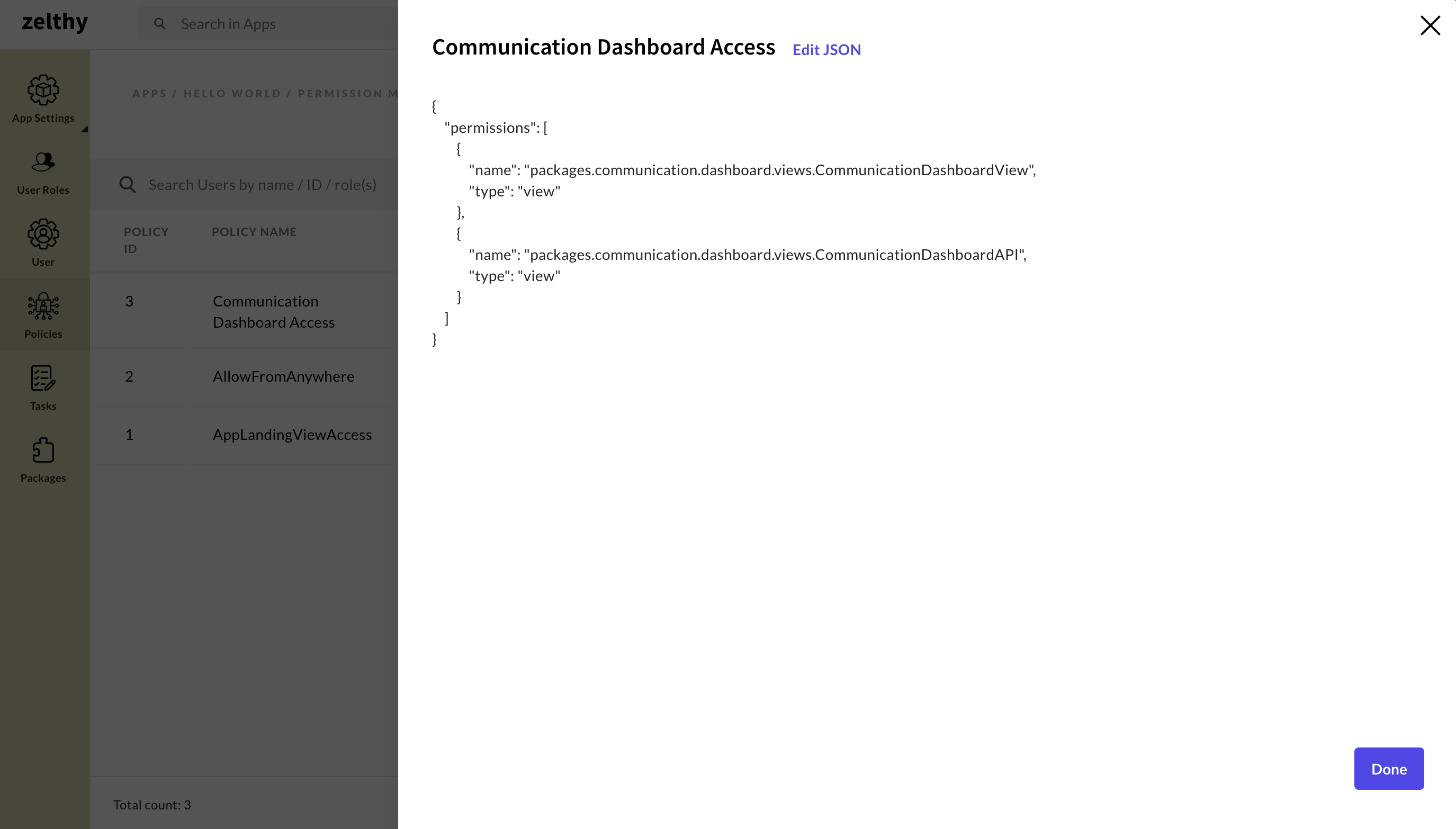
View Policy Config: Within the policy details, you'll find the "Policy Config" column. Click on the "View Config" link. This action will open a modal displaying the current Policy Config JSON.
-
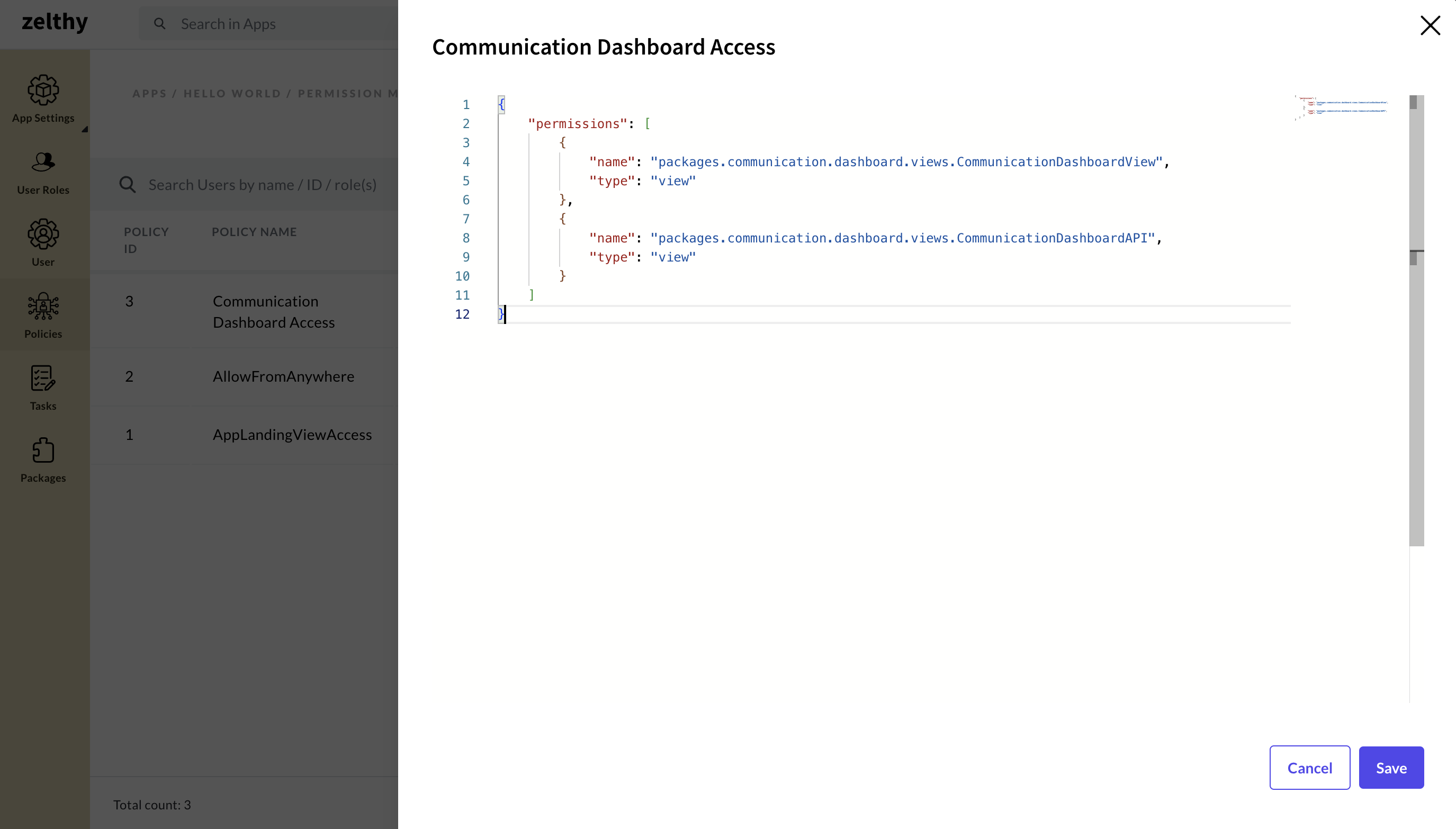
Enter Edit Mode: In the modal displaying the Policy Config JSON, click on the "Edit Config" button. This will enable edit mode, allowing you to make changes to the JSON configuration.
-
Make Required Changes: Within the edit mode, modify the JSON configuration to reflect the desired changes. This might include adjustments to permissions, configurations, or other settings.
-
Save Changes: After making the necessary modifications, click on the "Save" button. This action will update and save the edited Policy Config JSON.
Upon completing these steps, the policy's configuration will be successfully updated. The updated JSON configuration will be visible in the modal. The changes will reflect in the access permissions granted to users and user roles associated with this policy. This agile approach to policy configuration ensures that access control remains adaptable to changing requirements within your healthcare applications.