Configuring Menus
Menus are configured per user role in App Panel → Packages → AppBuilder → Menus. Each role gets its own sidebar navigation.
Steps
- Go to App Panel → Packages → AppBuilder → Role Configurations
- Click Add New and select the User Role or select an existing Role Config
- Click Add Route for each sidebar link:
- Name — display label (e.g. "Patients")
- URL — the route path (e.g.
/app/patients) — must match a configured route - Icon — SVG string, emoji, or image URL
- To nest items under a group, add a parent item with no URL, then add children beneath it
- Save
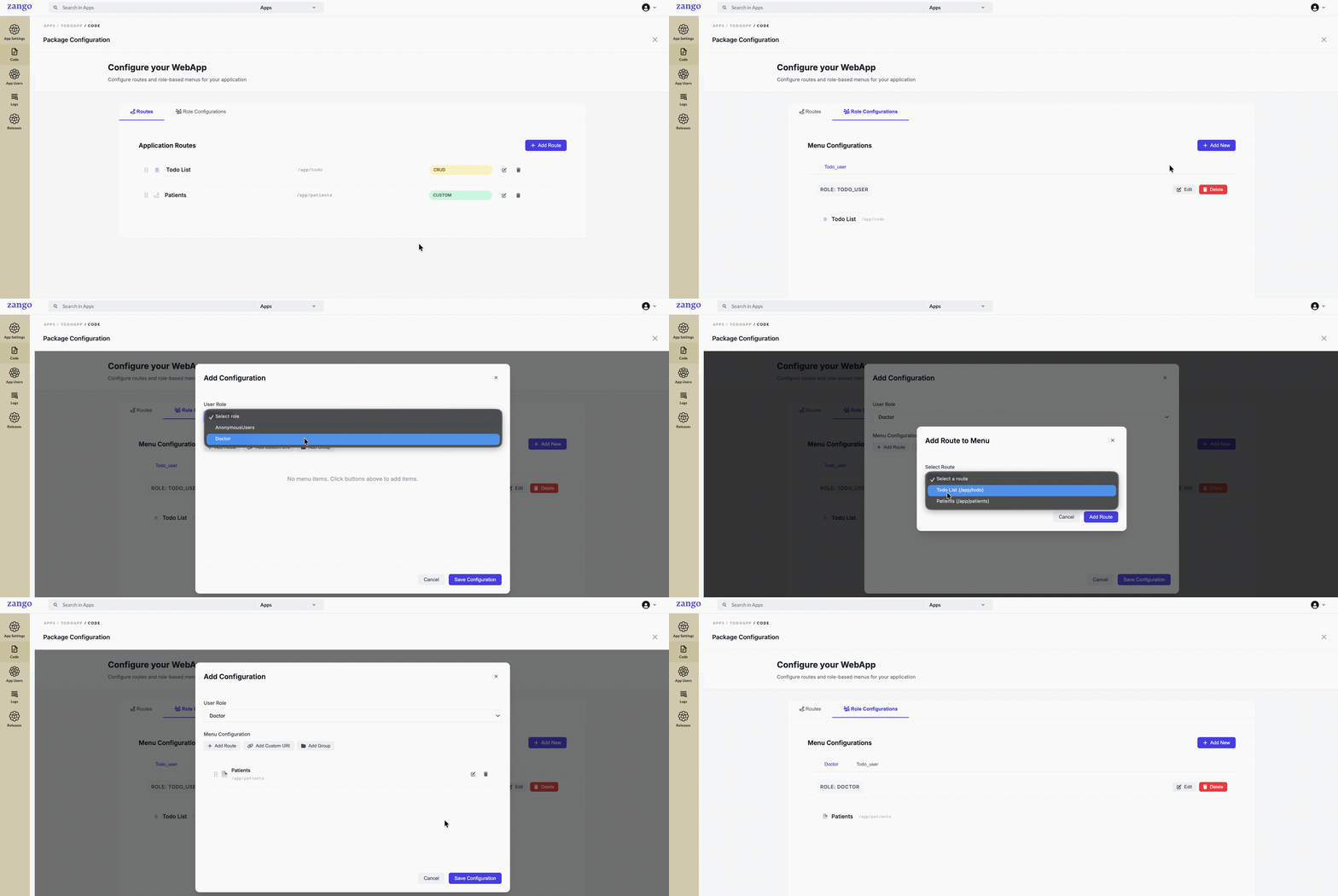
Menu Item Structure
A menu item can be a direct link or a group with nested children:
Sidebar
├── Dashboard              → /app/dashboard
├── Patient Management     (group — no URL)
│   ├── Patients           → /app/patients
│   └── Doctors            → /app/doctors
└── Settings               → /app/settings
Groups with children expand/collapse in the sidebar. Direct links navigate immediately.
One Config per Role
Each user role has its own menu configuration. If Admin and Manager need different navigation, create a separate menu config for each.
:::tip Roles without a menu config If a role has no menu config, the sidebar will be empty for that role — users can still access pages directly by URL if they have policy access. :::
Icons
Icons can be:
- An emoji:
🏥 - An inline SVG string:
<svg ...>...</svg> - A URL to an image
Keep SVGs simple (single-colour, currentColor fill) so they pick up the sidebar's theme colour correctly.
After Saving
No rebuild needed. Refresh the app and the new menu is live for that role.