Launching Your First Zango App
After setting up a Zango project, it's time to launch a new app. Each app lives inside your Zango project, isolated at both the code and database level.
Launch the app
- Log in to the Zango platform.
- Click the "Launch new app" button.
- Add an app name and description.
- Click the "Launch app" button.
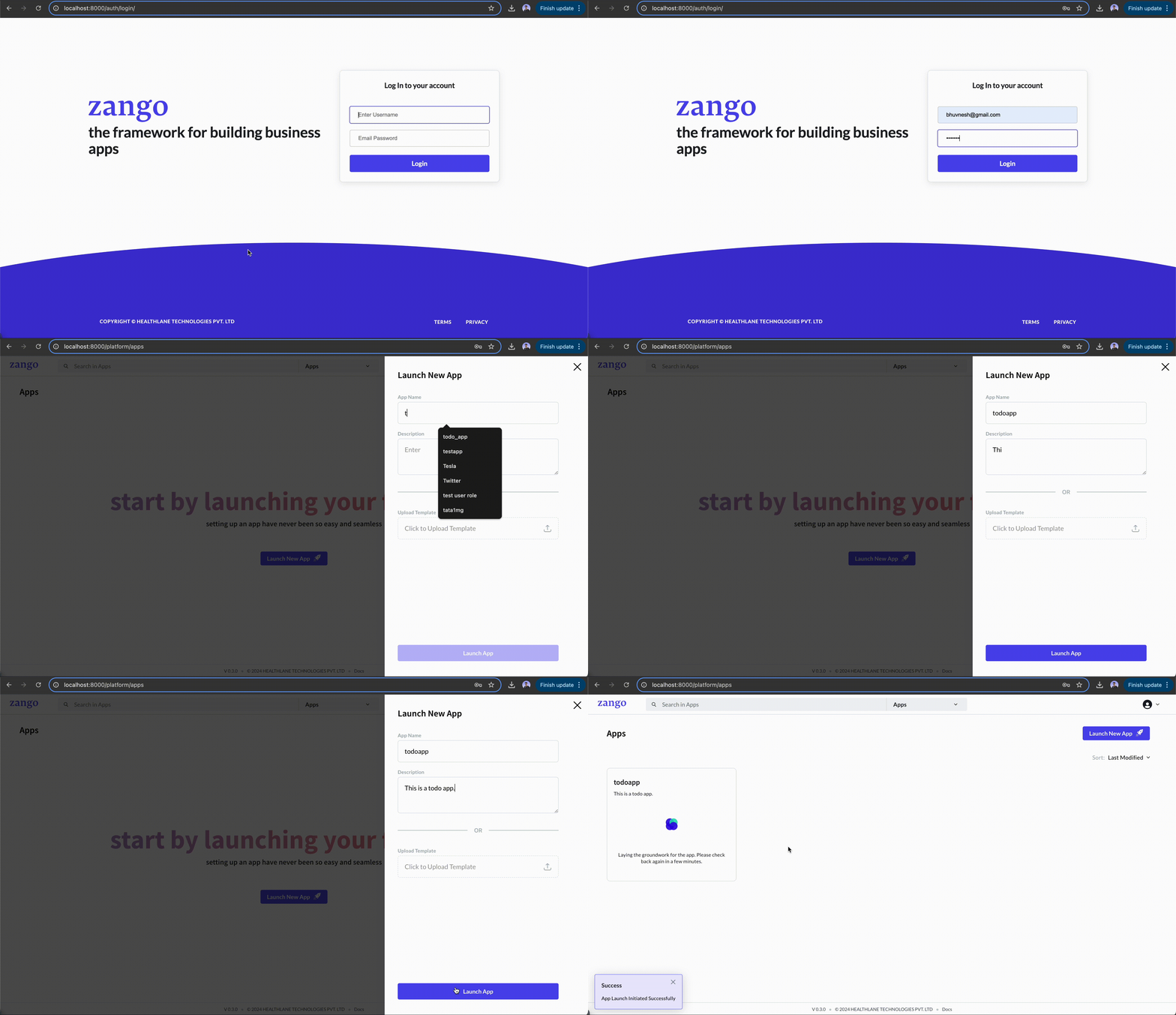
App Domain and Timezone configuration
Important
Configuring app domain and timezone is required — you will not be able to access your app without both being set.
Domain
Since Zango can host multiple apps under one project, it uses domains to identify which app a
request should be routed to. Assign a domain — for example, todoapp.zango.com — to your app
from the App Panel.
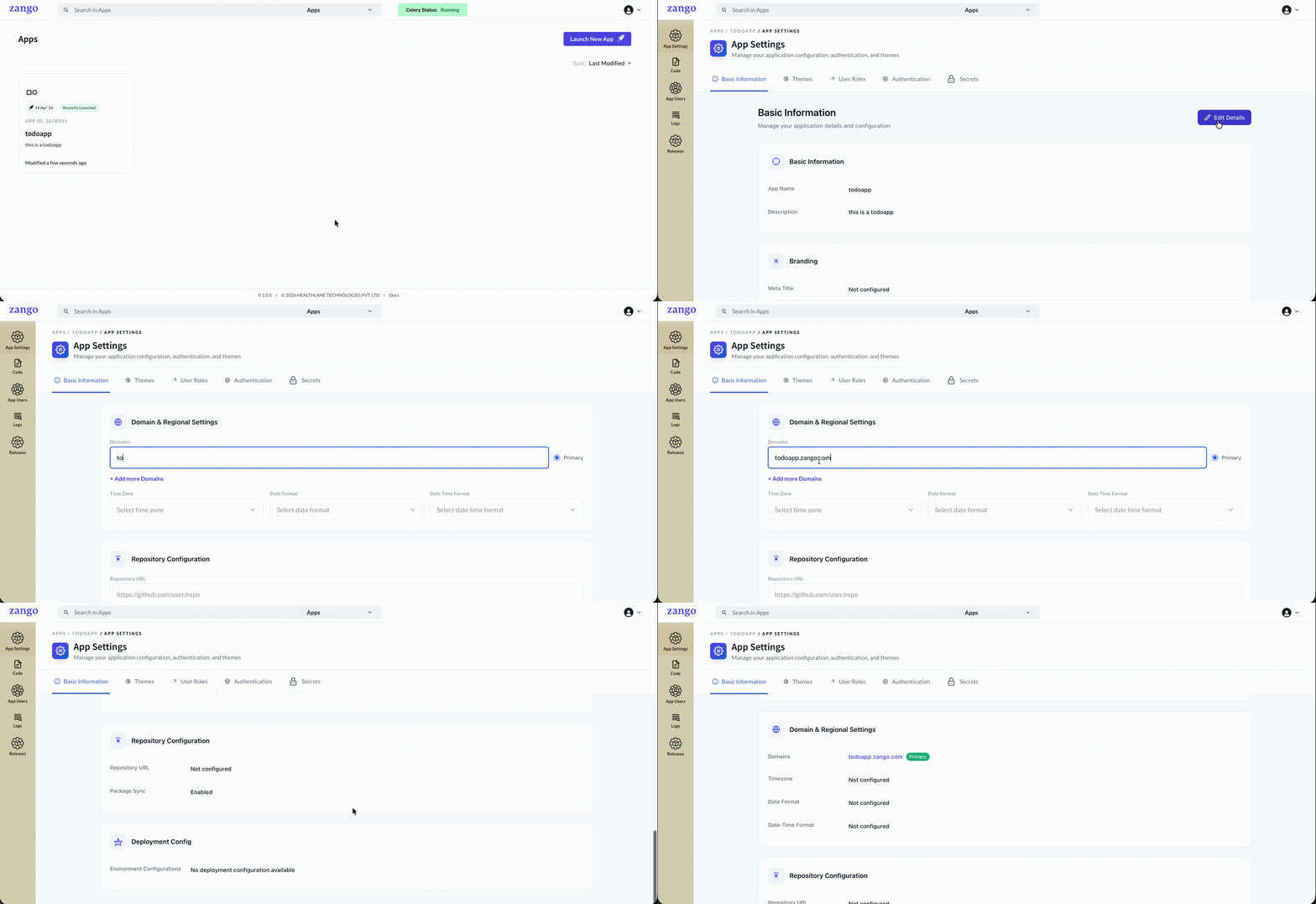
After assigning the domain, you need to map it to localhost in your /etc/hosts file so your
machine knows where to send requests.
- macOS/Linux
- Windows
- Open a new terminal window.
- Run the following command to open
/etc/hosts:
sudo nano /etc/hosts
- Add the following line to the file:
0.0.0.0 todoapp.zango.com
- Save and exit the editor.
- Open Notepad as Administrator.
- Navigate to
C:\Windows\System32\drivers\etc\hosts. - Add the following line to the file:
127.0.0.1 todoapp.zango.com
- Save and close Notepad.
Timezone
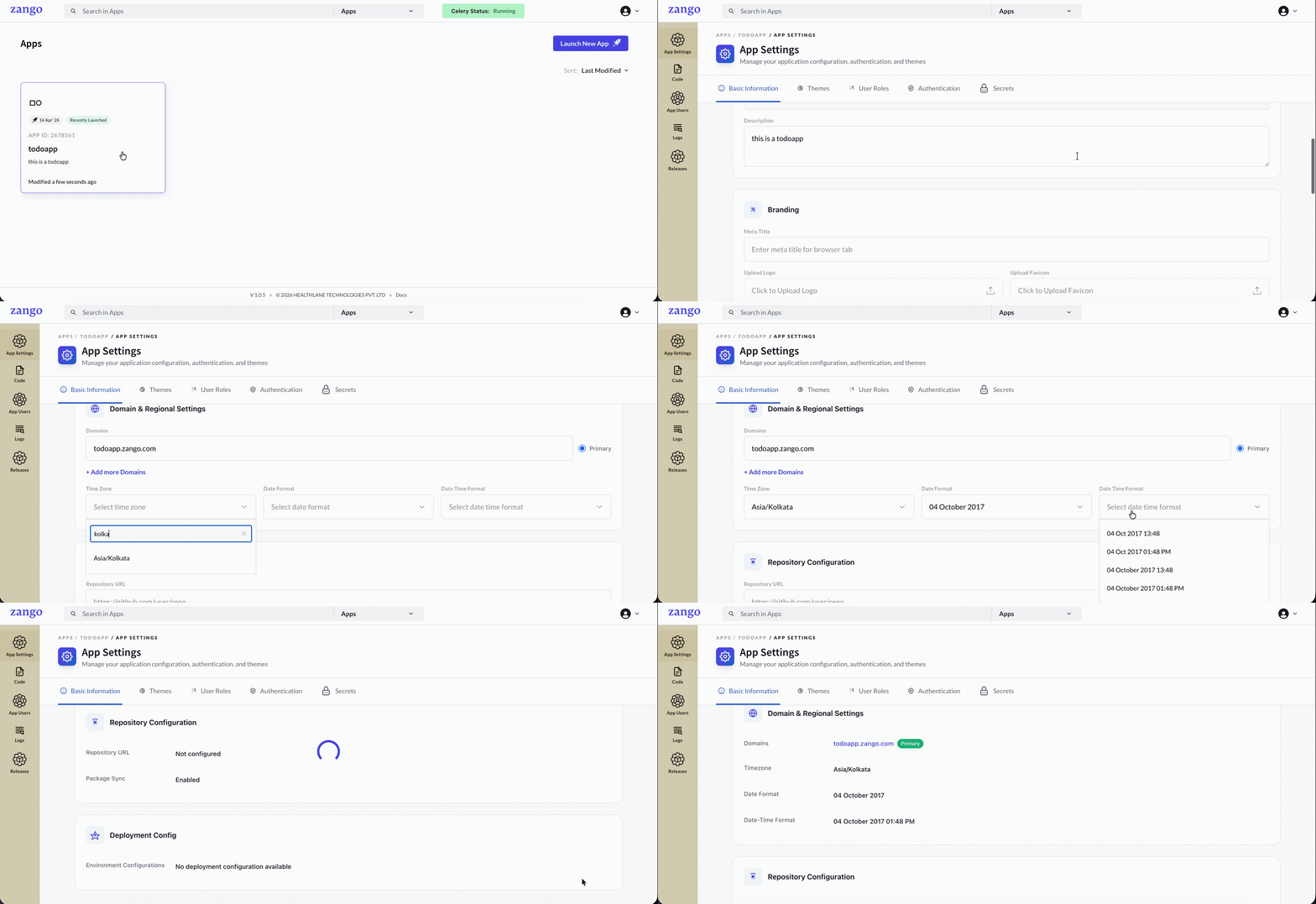
Congratulations! You have successfully configured the domain and timezone for your Zango app. The
app is now accessible at http://domain:port.